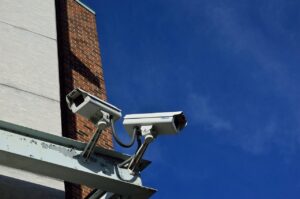

Sharp 4K footage is less useful when the live view, alert, or two-way audio arrives noticeably late.
Wireless 4K security cameras can place substantial demands on the camera processor, Wi‑Fi network, recorder, internet connection, cloud service, and viewing device. Any one of those stages can create lag, so replacing the router or reducing video quality should not be the first automatic response.
This guide explains how to identify the delayed part of the system and reduce high latency without unnecessarily compromising recorded detail.
What Causes High Latency in a Wireless 4K Security Camera?
Live-view latency is the delay from the camera capturing an image to that image appearing on a screen. It is an end-to-end measurement that can include image processing, video encoding, network transport, cloud routing, client buffering, decoding, and display time. As the Axis guide to live-video latency explains, client-side buffers and processing can be major contributors even when the network itself is operating normally.
Different symptoms also use different data paths:
- Local live-view delay may involve the camera, Wi‑Fi, local NVR or video management system, and viewing device.
- Remote live-view delay may additionally involve the home’s internet upload capacity, internet routing, cloud servers, and the remote connection.
- Motion-alert delay includes event detection, camera wake-up on applicable battery models, cloud processing, push-notification delivery, and phone settings.
- Two-way audio delay is a two-direction path and may behave differently from video.
- Recording delay can refer either to late footage or simply to slow access when opening playback; these are not necessarily the same fault.
Weak signal, interference, retransmissions, and Wi‑Fi congestion can cause buffering and dropped frames. However, camera processing, codec compatibility, recorder settings, app buffers, decoding hardware, and cloud architecture can be equally important. Internet upload speed matters for cloud uploads and remote viewing, but it is generally not the bottleneck when a camera records to a local NVR and is viewed entirely over the local network.
Diagnose the Delayed Data Path Before Changing Settings
Change one variable at a time and repeat each comparison using the same camera, scene, stream, and viewing device. Otherwise, an apparent improvement may simply reflect less motion in the scene or a different stream being selected automatically.
| Comparison | What the result may indicate |
|---|---|
| Local view versus remote view | If local viewing is responsive but remote viewing is delayed, investigate internet upload use, cloud routing, remote-device decoding, and app buffering. |
| Main stream versus substream | A responsive substream suggests the main stream is exceeding available network, camera, recorder, or client resources. |
| Wi‑Fi versus temporary Ethernet | If a supported wired connection resolves the lag, the wireless link, access-point placement, or radio congestion is likely contributing. |
| One viewing device versus another | A difference can point to app settings, hardware decoding, available memory, browser support, or display performance. |
| Video only versus video with audio | A change may reveal audio synchronization, transcoding, or two-way communication as part of the delay. |
If the camera supports Ethernet, a temporary wired test is particularly useful. Follow the manufacturer’s connection instructions and do not improvise unsafe outdoor power or cabling. If the delay remains over Ethernet, focus on the camera, recorder, cloud service, app, or viewing hardware rather than continuing to adjust Wi‑Fi.
Before judging delay from an on-screen timestamp, confirm that the camera, recorder, and viewing device have synchronized clocks. A clock error can look like video latency even when playback is current.
Improve the Wireless Connection Without Guessing
Choose the most stable compatible band
Five GHz often offers more channel choices and less interference than 2.4 GHz, but it also generally has shorter range and greater attenuation through brick, concrete, metal, and exterior walls. A distant outdoor camera may perform better on a stable 2.4 GHz connection than on a weak 5 GHz connection.
Use router diagnostics or a Wi‑Fi analyzer to examine signal quality, channel use, retransmissions, and interference near the camera. Signal bars alone do not reveal all airtime or retry problems. The Cisco Wireless RF Reference Guide provides further detail about band characteristics, interference, channel planning, and antenna behavior.
Wi‑Fi 6 is a wireless generation, not another name for 5 GHz: standard Wi‑Fi 6 can operate on 2.4 or 5 GHz, while Wi‑Fi 6E adds 6 GHz. A newer router may improve overall network capacity, but the camera receives the direct benefits of a newer standard only if it supports that standard. Check compatibility model by model.
Improve access-point placement and backhaul
Place the access point where the signal does not have to cross unnecessary masonry, metal doors, utility equipment, or multiple exterior walls. If relocating the main router is impractical, a correctly positioned mesh node or access point may help.
Backhaul quality matters. A mesh node with wired Ethernet backhaul is generally more predictable than a wireless node that must receive and retransmit through the same weak area. A range extender also depends on receiving a good source signal; placing it where the camera already has poor service will not repair the original link. See TP-Link’s comparison of extenders, powerline networking, and mesh for the practical differences among these approaches.
For critical real-time monitoring, a wired Ethernet or PoE camera connection is usually more predictable than adding wireless repeaters. Outdoor cable routes, new electrical outlets, grounding, surge protection, and penetrations through the building envelope should use suitable components and comply with local requirements. Hire an appropriately qualified professional where the work is beyond user-safe setup.
Calculate the traffic that is actually simultaneous
Do not estimate demand from the “4K” label alone. Stream rates vary by model, frame rate, codec, image complexity, and configuration. Add the bitrates of streams that operate at the same time, including recording, live viewing, cloud upload, and any secondary streams. Reolink’s camera bandwidth guidance illustrates how simultaneous viewing and uploading create additive demand.
Leave capacity for protocol overhead and other household traffic. If the system is local-only, concentrate on Wi‑Fi airtime, LAN links, NVR capacity, and client performance. If footage is uploaded to the cloud or viewed remotely, also check whether cameras, backups, video calls, or other services are competing for the internet uplink.
Use QoS only for an identified contention problem
Quality of Service settings can prioritize latency-sensitive live viewing over bulk transfers when the connection is busy. QoS cannot create bandwidth, repair a weak radio signal, or accelerate camera encoding. Incorrect traffic classification or bandwidth limits can make performance worse, so document the original settings and follow the router manufacturer’s guidance.
A separate SSID or VLAN should not be treated as extra wireless capacity. Devices on separate SSIDs still contend for airtime when those SSIDs use the same access point, radio, and channel. Moving traffic to another radio or channel, improving backhaul, or applying carefully configured QoS may help performance. A VLAN’s primary value is cybersecurity isolation.
Tune Video Settings Without Unnecessarily Losing Evidence
Before changing recording quality, record the current main-stream, substream, codec, frame-rate, and bitrate settings. Test changes individually and review footage containing movement, foliage, rain, headlights, or other complex detail—not just a static daytime scene.
- Use a substream when supported: Many cameras and NVR applications can use a lower-resolution stream for live mobile viewing while recording the main stream at higher quality. Confirm that the NVR is still recording the main 4K stream before assuming evidence quality is preserved. Multiple streams can also increase camera processing load, and behavior varies by model. Reolink’s stream settings guide shows one manufacturer’s implementation.
- Adjust bitrate cautiously: Reducing bitrate may stabilize an overloaded connection, but a cap set too low can remove detail during motion-heavy scenes. Variable bitrate can preserve quality by allocating more data when the scene becomes complex. A fixed bitrate should not simply be matched to internet upload speed, especially for local recording.
- Treat frame rate as a trade-off: Lowering frame rate can reduce bandwidth, but it also reduces motion detail and increases the interval between captured frames. Higher frame rates may be preferable where minimum live-view latency is the priority. There is no universal frame rate for every entrance, driveway, or identification task.
- Verify codec compatibility: H.265 can use less bandwidth than H.264 at comparable quality in suitable implementations, but it may require more decoding resources or different buffering. Confirm support across the camera, NVR or VMS, app, browser, and viewing hardware. The Axis overview of surveillance codecs explains the broader compatibility and processing trade-offs.
- Test processing features individually: Noise filtering, image correction, analytics, encryption, HDR, and other functions do not have identical effects on every camera. Disable a feature temporarily only as a diagnostic test, then compare image quality, detection reliability, security, and latency before deciding whether to leave it changed.
Continuous cloud recording is not inherently slow, but it can contribute to delay when it saturates the uplink or competes for camera and network resources. Motion-triggered recording may reduce traffic, yet it can also lose pre-event context or miss activity if detection and buffering are poorly configured. Recording mode should therefore be chosen for security coverage as well as network demand.
Check the App, Recorder, and Viewing Device
If Wi‑Fi and Ethernet tests produce similar results, inspect the rest of the video chain:
- Client buffer: Look for a low-latency or real-time viewing option in the app, NVR, or VMS. Reducing the play-out buffer may shorten delay, but it can increase stuttering when network timing is inconsistent.
- Hardware decoding: If supported, compare hardware and software decoding. Older phones, computers, or integrated displays may struggle with a high-resolution H.265 stream even when the network is fast enough.
- Automatic stream selection: Confirm whether the app silently changes between the main stream and substream. A test is meaningful only when the selected stream is known.
- Firmware and software: Install supported updates for the camera, NVR, router, and app from their official sources. Back up configuration settings first where possible and review release notes for known compatibility issues.
- Alert configuration: If live viewing is timely but alerts are late, check motion zones, detection settings, notification permissions, phone battery restrictions, cloud status, and any wake-up behavior documented for the camera.
- Remote path: If only remote viewing is slow, compare another internet connection and another client device. Cloud routing and processing add possible stages, but their impact depends on the system architecture.
A basic network ping can reveal severe packet loss or unstable response times when the camera permits it, but it does not measure sensor-to-screen delay. A low ping does not rule out camera encoding, cloud processing, client buffering, or decoding problems.
Improve Responsiveness Without Weakening Security
Do not disable authentication, encryption, or secure remote-access controls merely to make a feed feel faster. Avoid exposing camera services directly to the internet unless the manufacturer’s supported architecture and appropriate security guidance specifically require it.
Network segmentation can reduce the consequences of a compromised IoT device, even though a VLAN does not inherently add Wi‑Fi capacity. NIST guidance for securing small-business and home IoT devices supports measures such as separating higher-risk IoT equipment from everyday computing devices and keeping devices updated.
Camera placement, audio recording, and surveillance of shared or public-facing areas may be subject to local privacy, consent, or property rules. Check the regulations that apply in the installation’s jurisdiction.
Practical Takeaway
The fastest route to lower latency is to identify where the delay begins. Compare local and remote viewing, main and secondary streams, wireless and temporary wired connections, and more than one viewing device. These tests distinguish a Wi‑Fi problem from camera processing, internet upload, cloud routing, client buffering, or decoding limitations.
If Wi‑Fi is responsible, use the most stable compatible band, improve access-point placement and backhaul, and calculate aggregate stream demand. If the network is healthy, tune the stream, codec, client buffer, and hardware decoding without assuming that lower frame rate, H.265, a VLAN, or QoS is automatically the right fix.
When consistent real-time viewing is essential and wireless performance remains variable, a supported wired Ethernet or PoE system is the more predictable long-term option.
Sources and references
- Axis Communications: Latency in Live Network Video Surveillance
- Cisco: Wireless RF Reference Guide
- Reolink: Required Bandwidth of Wi‑Fi and PoE Cameras
- Reolink: Stream Settings Guide
- NIST NCCoE: Securing Small-Business and Home IoT Devices
- TP-Link: Range Extender, Powerline, and Mesh Comparison
The MiraGuard Home Editorial Team creates practical educational content about smart home automation, residential security, connected lighting, energy-efficient design, sustainable building practices, and everyday home technology. Our articles are prepared using manufacturer documentation, official product resources, public safety guidance, recognized technical references, and reputable industry publications. MiraGuard Home does not provide engineering evaluations, electrical services, architectural plans, security guarantees, or property-specific installation advice. Electrical, structural, high-voltage, and permit-related work should be handled by appropriately qualified professionals when required.